
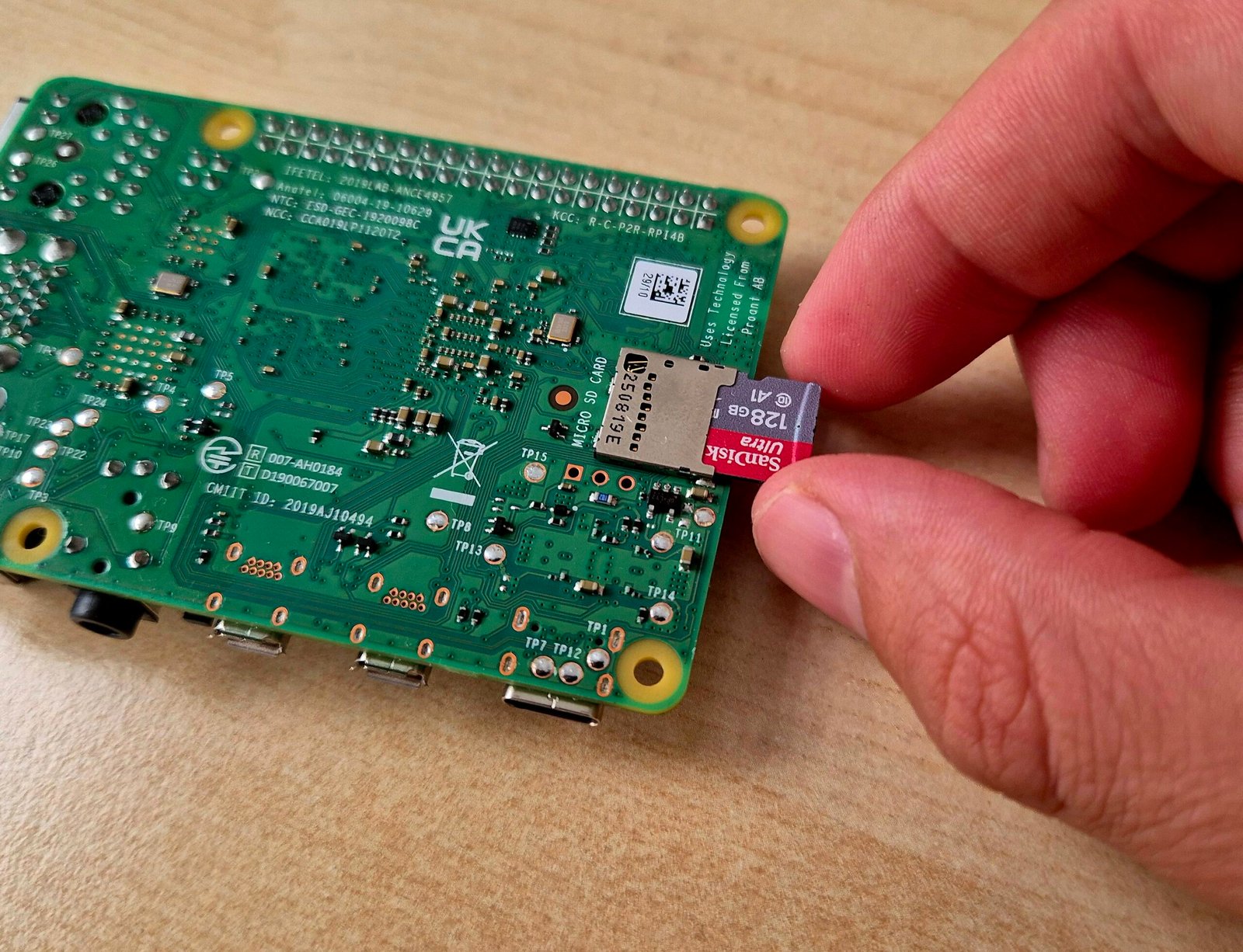
The other day I had to take an SD card that I had in a Raspberry Pi I wasn’t using, in order to use it in another device. But when I connected it to the computer, I saw that Windows was only listing a boot partition whose size was not much smaller than what the SD card indicated.
Stick around, because in this post I’ll explain the best way to format an SD card and why this happened.
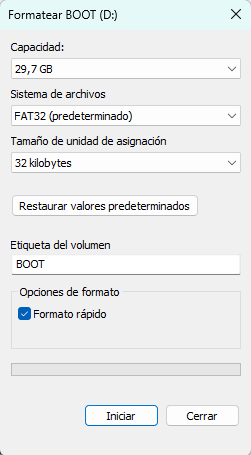
Table of Contents
ToggleWhy does this happen?
When Raspberry Pi OS is flashed onto a SD card, it creates multiple partitions on it. Typically a small boot partition (FAT32) and a much larger root filesystem partition (ext4). The problem is that Windows can only read FAT-based partitions, so when you plug the card back into a Windows PC, it will only detect and show the boot partition, ignoring the rest of the card entirely.
This makes it look like your 32GB or 64GB card has suddenly shrunk to just a few hundred MB.
Why the normal Windows format doesn't work
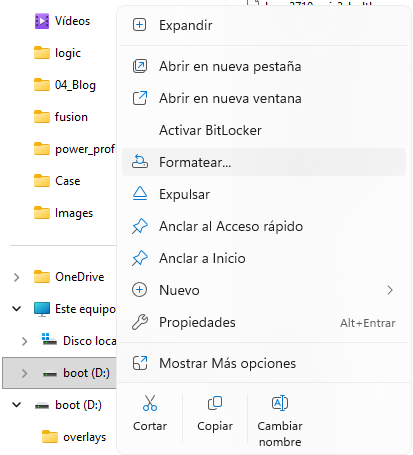
The simplest way to format an SD card is right-clicking the drive in File Explorer and selecting Format. The issue is that Windows’ built-in disk management only sees the small boot partition, so even if you format it, the rest of the card (the ext4 partition) stays untouched and inaccessible. You end up with the same tiny visible capacity as before.
The easiest way to format the SD card
The tool that actually solves this properly is the official formatter from the SD Association. It’s able to detect and wipe all the partitions on the card, not just the visible one, restoring it to a single clean FAT32 partition using its full original capacity.
You can download it here, depending on your OS:
To do this, simply insert the SD Card into the computer, and open the installed application.
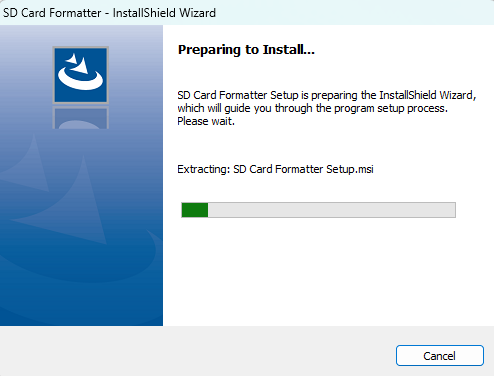
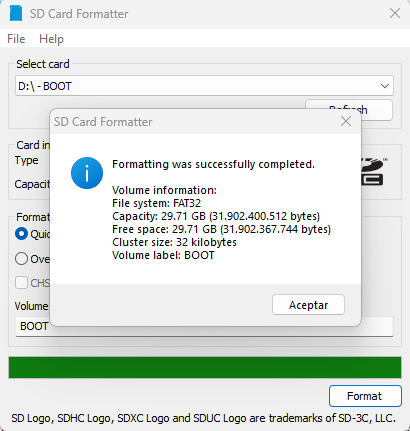
Once opened, it’s very simple: you just need to select the path of the SD card (Boot partition), and click Format. Additionally, you can do a Quick Format or change the partition name.
Finally, wait for the process to finish and a message will appear with the information, where you’ll be able to see that the image’s capacity is correct.
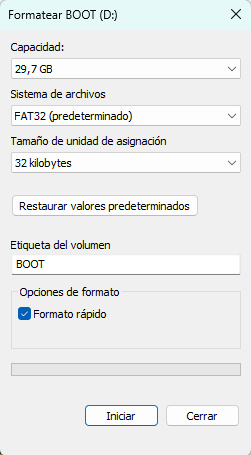
Now you could indeed format it through Windows, since the entire SD Card has been formatted in the same file system (FAT32) and is visible to Windows.
Conclusion
When flashing a SD Card for Raspberry Pi, a partition system is created in which we have a small partition called BOOT in FAT32 format (recognized by Windows) and another for the file system in EXT4 format. That is why if we connect that SD Card to the computer afterwards, we will not see the full size. I have detailed that I recommend the formatting tool provided by the SD Association.